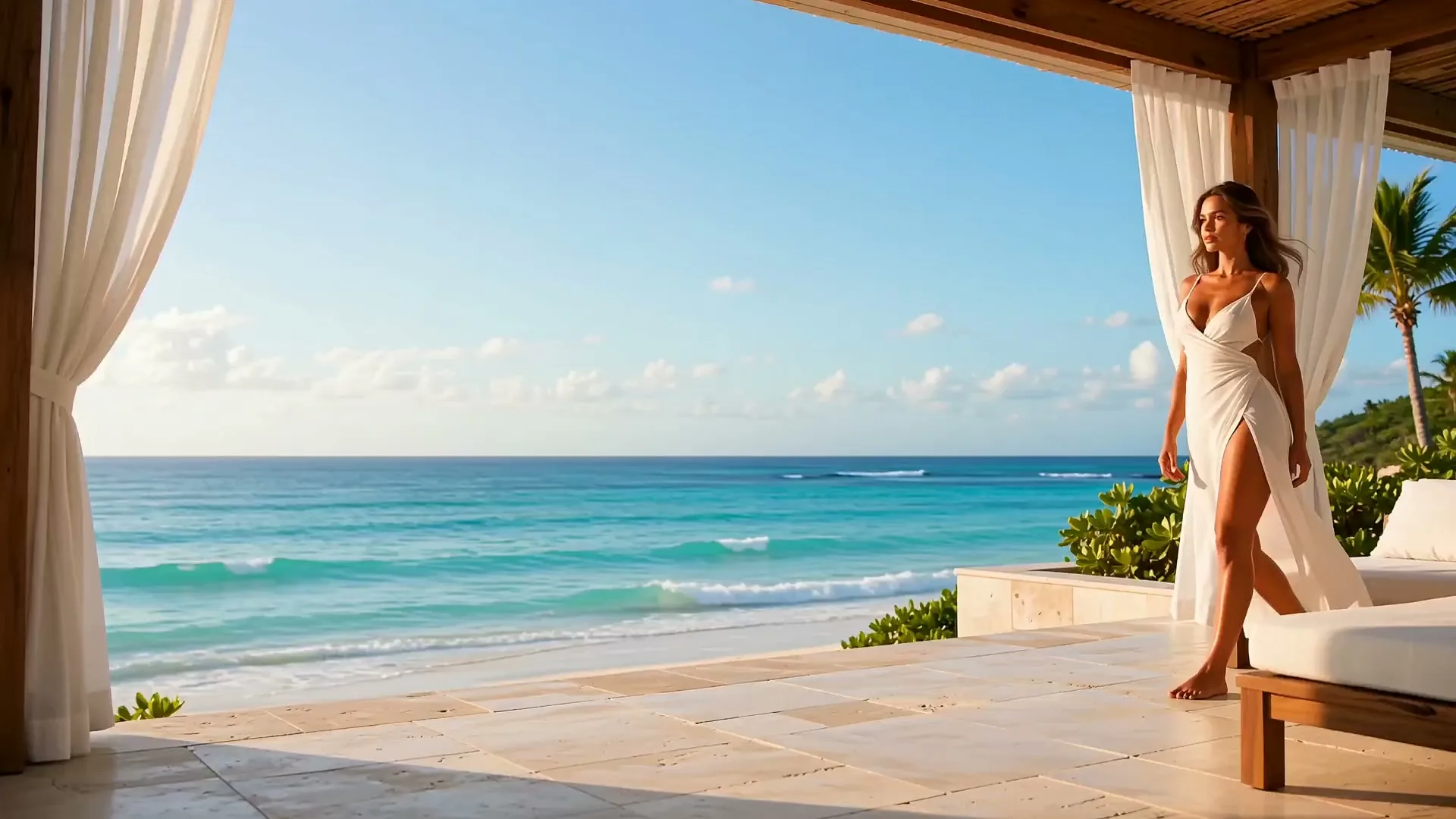
Image 2.5 AI Image Generator
Start with a few words or a reference photo. Choose AI Image in the creator below, then select your model and shape the details. The moving background offers a reference for composition and mood.
How do image models and settings work in Image 2.5?
Build images through text, reference, composition, and iteration. Use these motion references to explore framing, light, and mood for your next image brief.
Your selected model interprets the prompt
The image model you choose receives your prompt and uses it to guide the generated image.
Reference inputs depend on the model
Models with image-input support can use your uploaded reference alongside a written prompt.
Each model supports its own output settings
Available aspect ratios and resolutions follow the capabilities of your selected image model.
Credit estimates follow the selected settings
The creator calculates a displayed credit cost for the image model and supported settings you choose.

CREATIVE INSPIRATION
What visual directions can you explore with Image 2.5?
Explore visual directions for your next prompt. These curated examples illustrate creative styles; they are not a benchmark or a claim of model output.
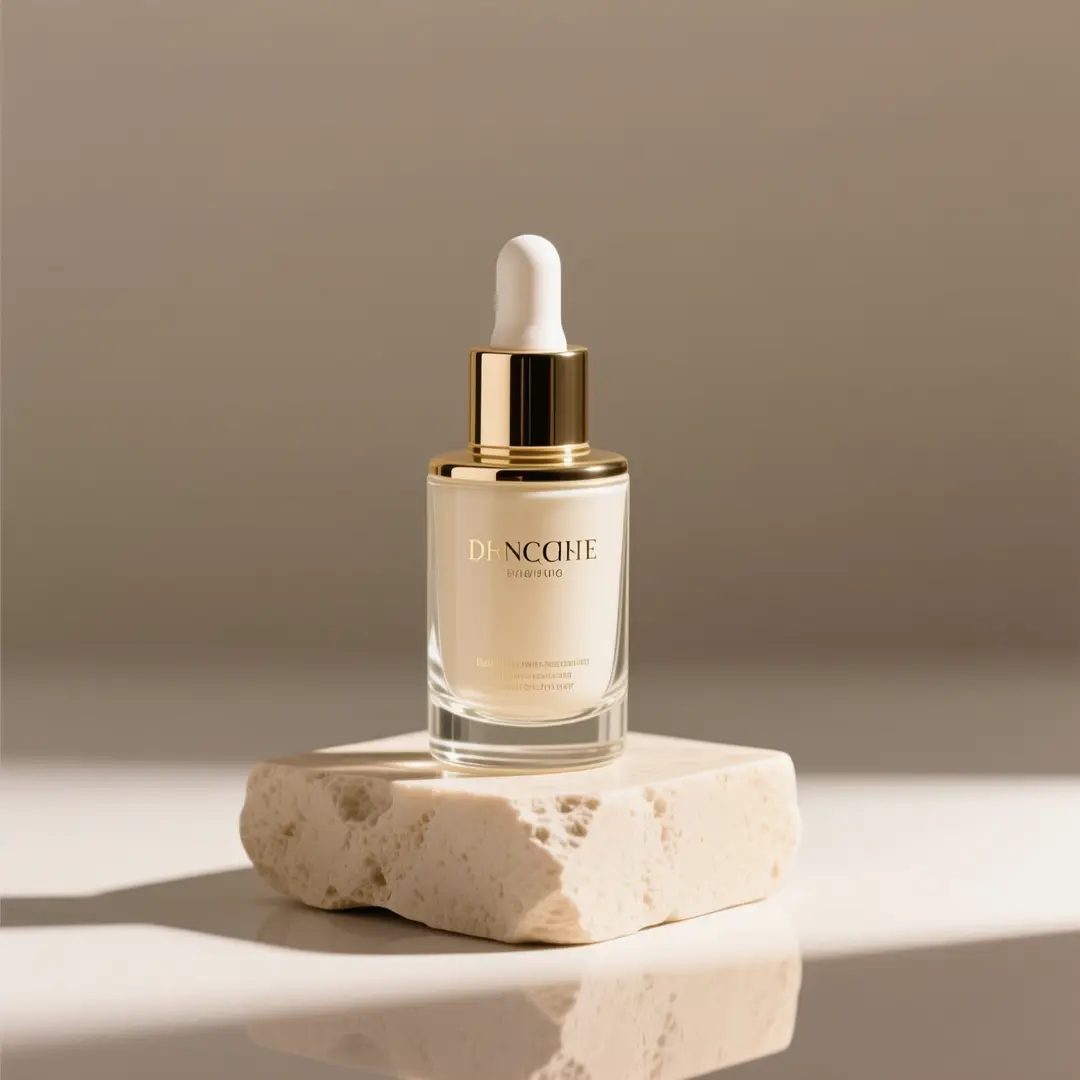
A quieter kind of product shot
Warm stone, soft daylight, and a restrained palette.
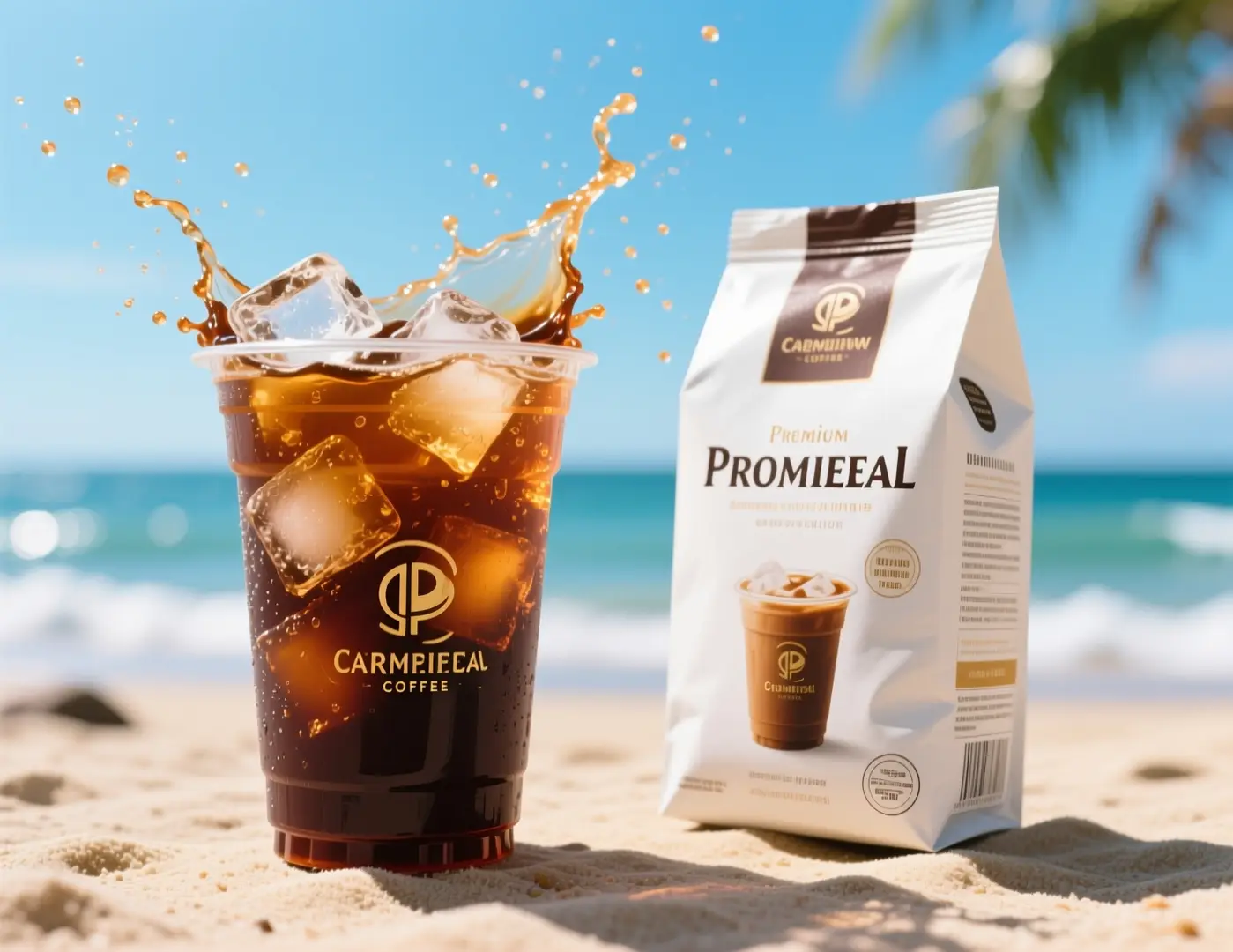
A campaign with summer energy
An iced drink, a bright setting, and room for a brand story.
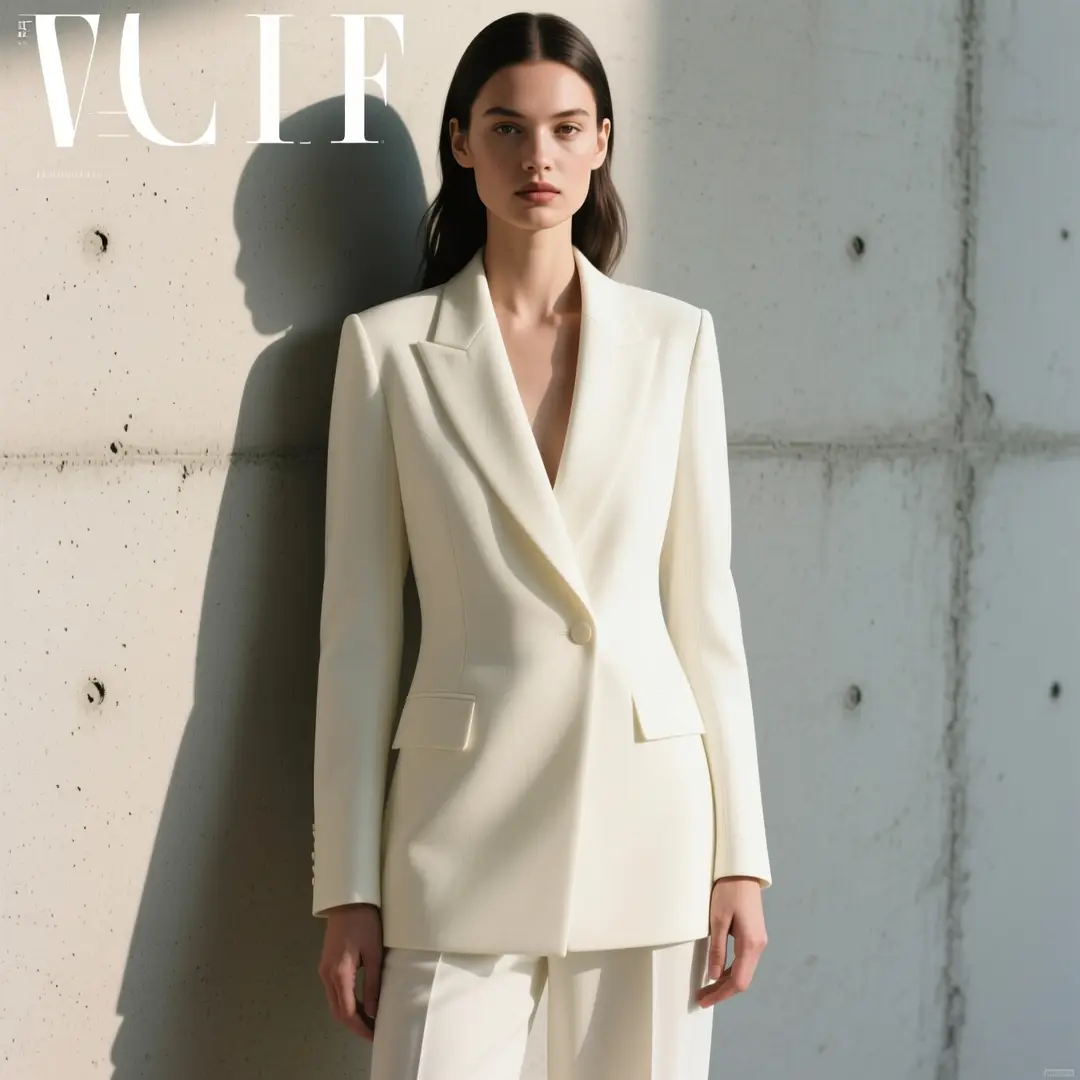
An editorial point of view
Directional light, simple styling, and a deliberate composition.
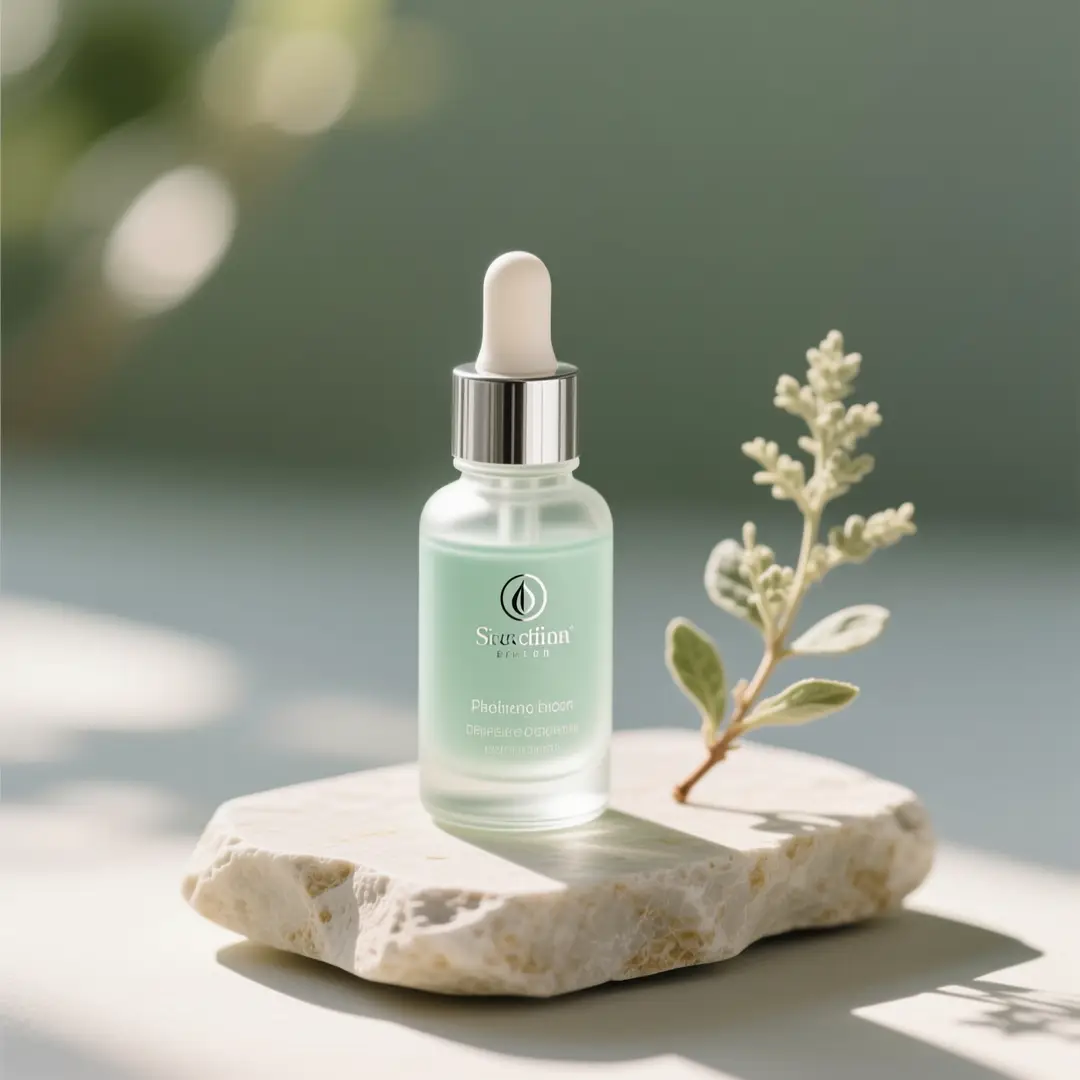
A botanical still life
Combine natural textures with a clean product arrangement.
What can you create from an idea with Image 2.5?
Build a product shot, explore a new composition, or develop a poster from a few well-chosen words. Start with an image model in the studio and refine the details that matter. The four images below are curated visual references for these creative directions.
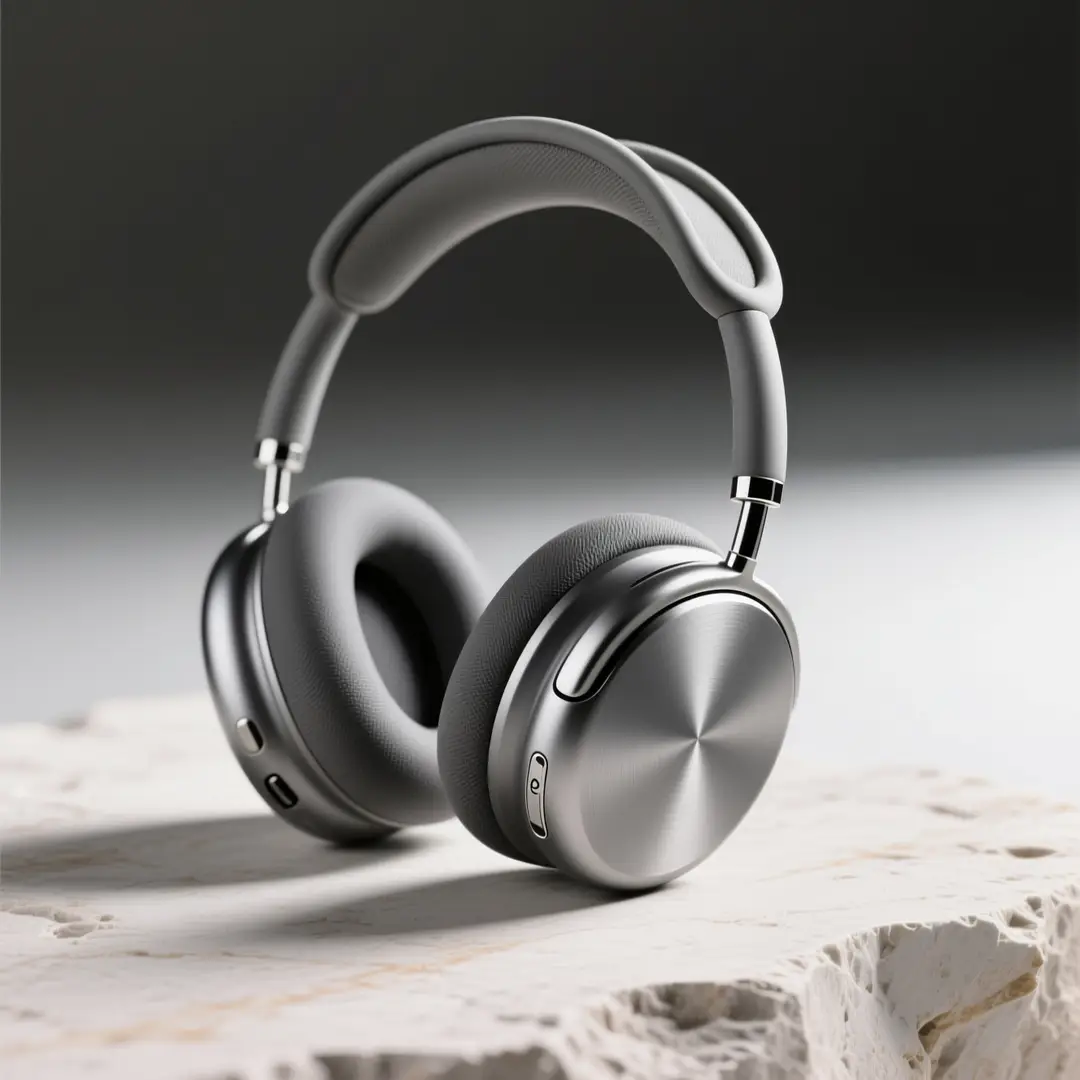
Give your product a setting worth noticing
Describe the material, camera angle, surface, and light. Create a clean starting point for a product page, a campaign concept, or your next creative brief.
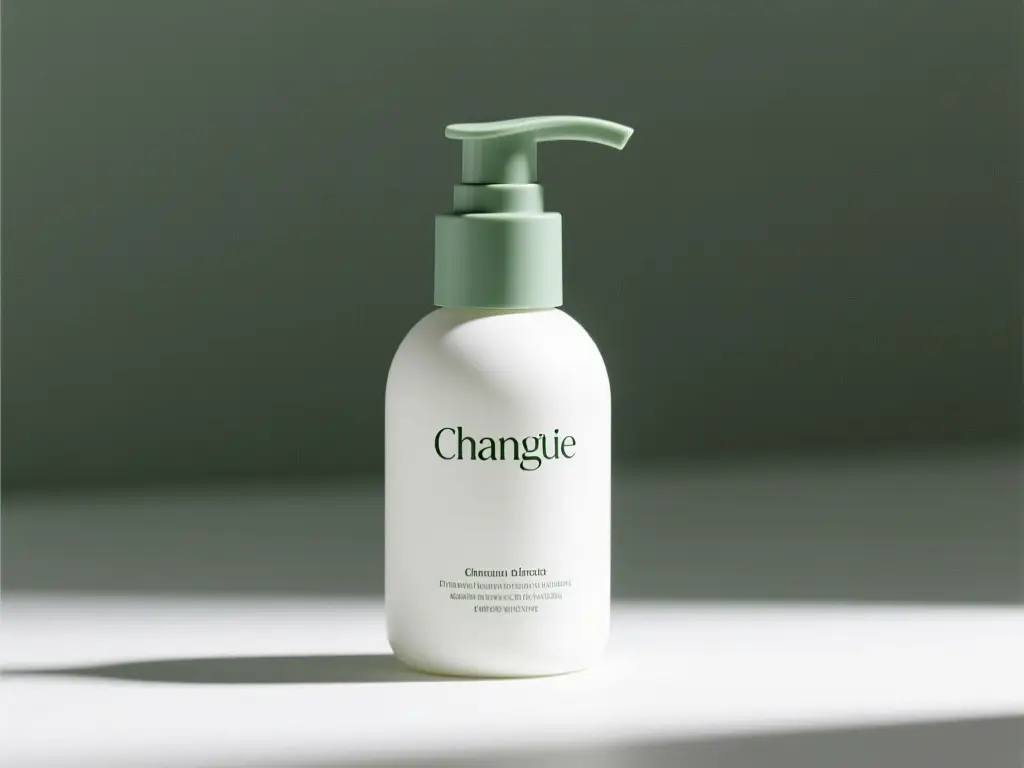
Start with a reference and change the direction
Upload an image and explain what should stay and what should change. Use an image-input model to explore packaging, backgrounds, and a new visual treatment.
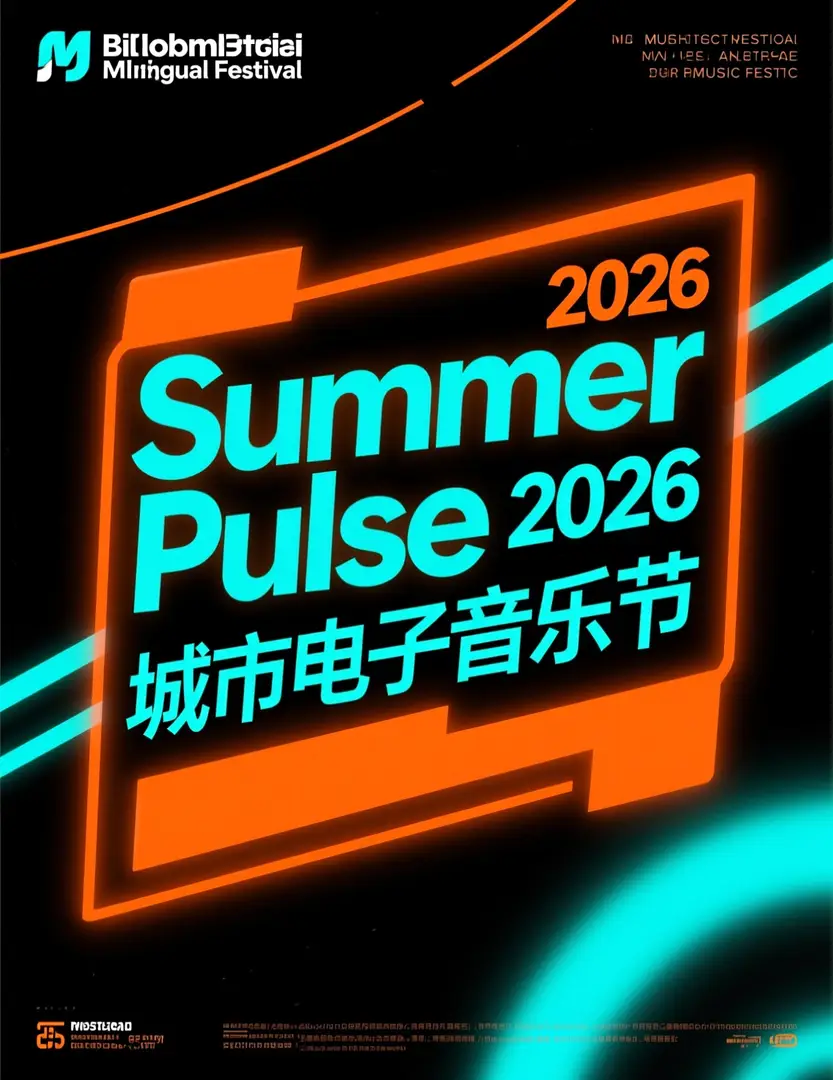
Make space for words as well as images
Plan a poster with a clear headline, supporting copy, and a visual hierarchy. Put exact wording in your prompt, then check the result for spelling and layout.
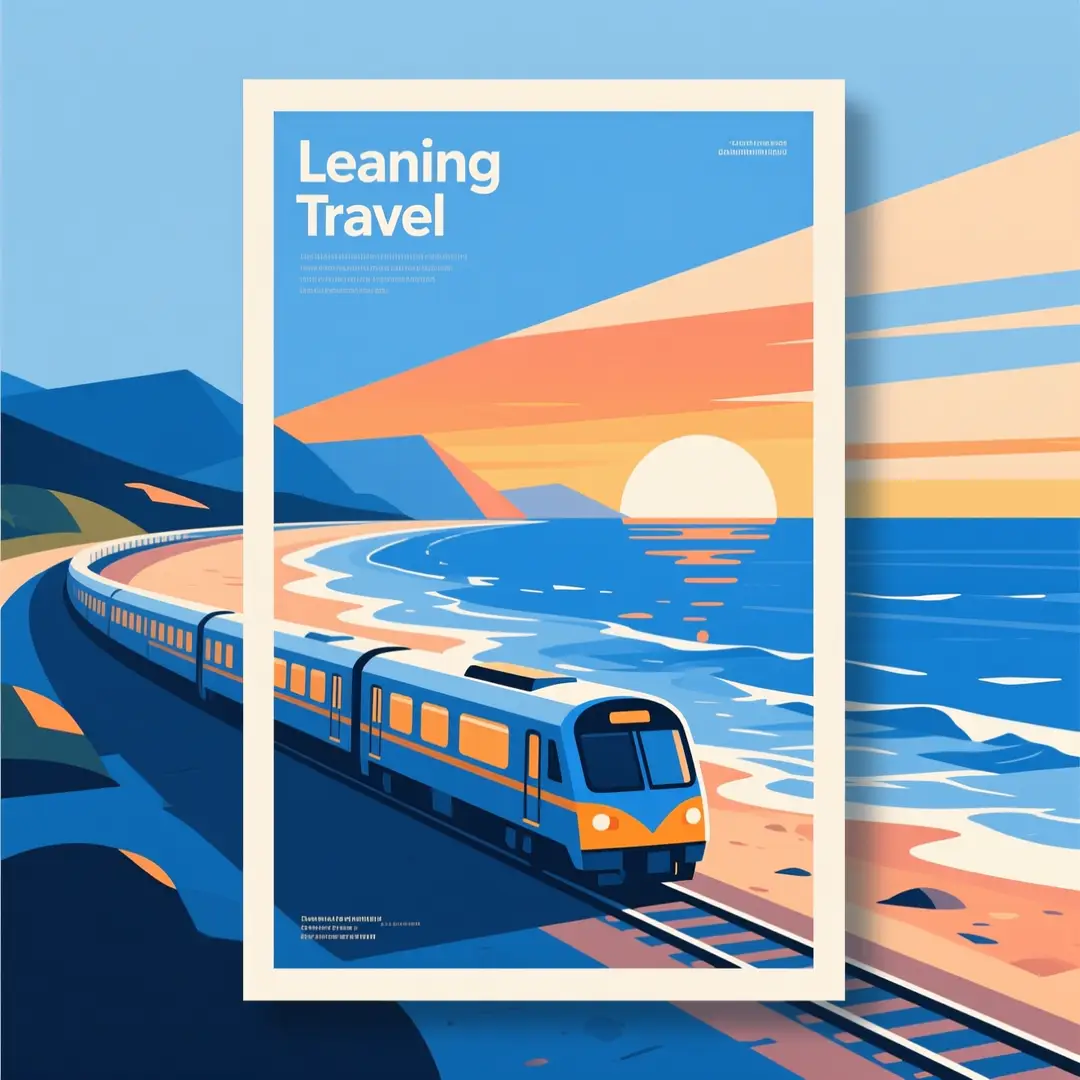
Explore a visual style before you settle on one
Turn a scene into an illustration, a travel print, or an editorial concept. Describe the palette, shapes, and mood to give your prompt a clear creative direction.
How do you create your next image with Image 2.5?
A simple workflow for text-to-image and reference-led creation.
Describe your idea
Start with your subject, setting, lighting, and style. Upload a reference when you want the image to guide the result.
Choose your model and settings
Choose from the aspect ratios and any resolution controls shown for the selected model. Review the displayed credit cost before generating.
Review and refine the result
Inspect the result, adjust specific details in your prompt, and download the version you want to use.
Use your image in a project
Use the final download in social posts, campaigns, presentations, or other creative work.
Where can Image 2.5 help with your next project?
Create useful visual drafts for the places your ideas need to go.
Social content
Explore feed images, launch announcements, and visual hooks. Choose portrait or square formats for your channel.
Product campaigns
Develop product scenes, background directions, and seasonal campaign concepts before investing in a finished shoot.
Design exploration
Try poster layouts, illustrated worlds, and editorial directions. Turn a written brief into images you can discuss.
Client presentations
Build moodboards and visual proposals that make your direction easier to understand, compare, and refine.
Which Image 2.5 plan fits your creative work?
Choose a credit plan for your next creative project.
Credit costs depend on model and settings
Each image generation uses credits based on the selected model and output parameters. Review the displayed cost before creating.
Some models offer resolution choices
Where resolution is available, the selected resolution can change the displayed credit cost. Check the amount after changing that setting.
Choose models based on your needs and budget
Different models have varying credit costs. Select one that fits your project requirements.
Track your credits in your account
Monitor your balance and usage to manage projects effectively within the workspace.
Starter
Perfect for getting started with Image 2.5
- 800 credits/month
- Download your generated images
- Access to all templates
- Review your saved image history
- Email support within 24h
- Community access
- Text-to-image and image-to-image tools
- Additional AI models
- Access to AI image generation models
- Priority support
- Advanced features
Pro
Most popular for image creators
- 3000 credits/month
- Download your generated images
- Access to advanced AI image generation models
- Access to all templates
- Priority customer support
- Faster generation queue
- Review your saved image history
- Advanced image settings
- Higher resolution image outputs
- Priority image processing
- Image creation tools
- Premium image generation features
- Image workflow support
Scale
For power users creating images with Image 2.5
- 17300 credits/month
- Download your generated images
- Access to advanced AI image generation models
- Access to all templates
- Priority customer support
- Fastest generation queue
- Dedicated account manager
- Review your saved image history
- All advanced image settings
- Priority image processing
- Text and reference image workflows
- All premium image settings
- Image creation workspace
Have feedback on our image generation plans? Submit feedback or email us at support@image25.pro
What should you know before using Image 2.5?
Models, prompts, edits, and credits.
Getting started
What is Image 2.5?
How do I write a useful image prompt?
Can I create images from text alone?
Models and image inputs
Can I use GPT Image 2.5 here?
Can I edit an existing image?
Which image sizes can I use?
Credits and support
How many credits does an image cost?
Can I get a refund for credits used?
Examples and publishing
Where do the images and motion clips on this page come from?
What should I check before publishing an image?
Still have questions? Our support team is ready to help.
What can Image 2.5 help you create next?
Open the studio, choose an image model, and turn your prompt into a starting point.
Evaluate a direction before production
Visualize concepts and compare creative directions before committing to production.
Communicate your brief visually
Turn written briefs into visual drafts for clearer team or client communication.
Build on a reference you already have
Upload reference images to guide edits and explore new creative directions.
Review spending before iterating
Monitor credit usage and plan iterations based on your budget.